Lines in Quotes
Wrap every spoken line in quotes and attach it to a character, for example: A rapper in a hoodie leans into the lens and says, "This one is for the block." Keep lines short enough for the clip length. Google has fully tested English.
Turn a prompt or an artist photo into an 8-second music video shot with its own voices and sound in 720p, 1080p or 4K, using the Veo 3.1 AI video generator.
The Veo 3.1 AI video generator creates picture and sound together, so a spoken line, a footstep or crowd noise lands on the right frame, in landscape for YouTube or vertical for Reels and TikTok.
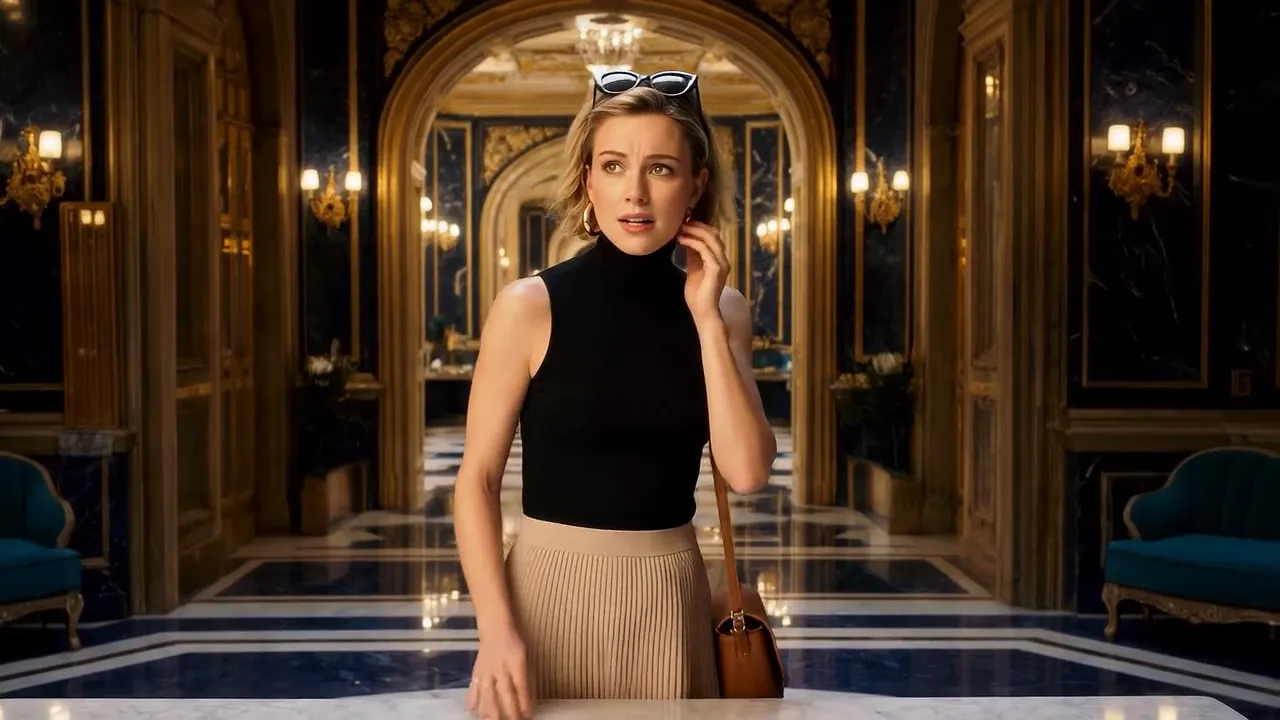
Artist Looks from Reference Images Upload a face, an outfit and a location, and Veo 3.1 puts that person in the setting with the styling unchanged, so an artist's look carries from one music video shot to the next.
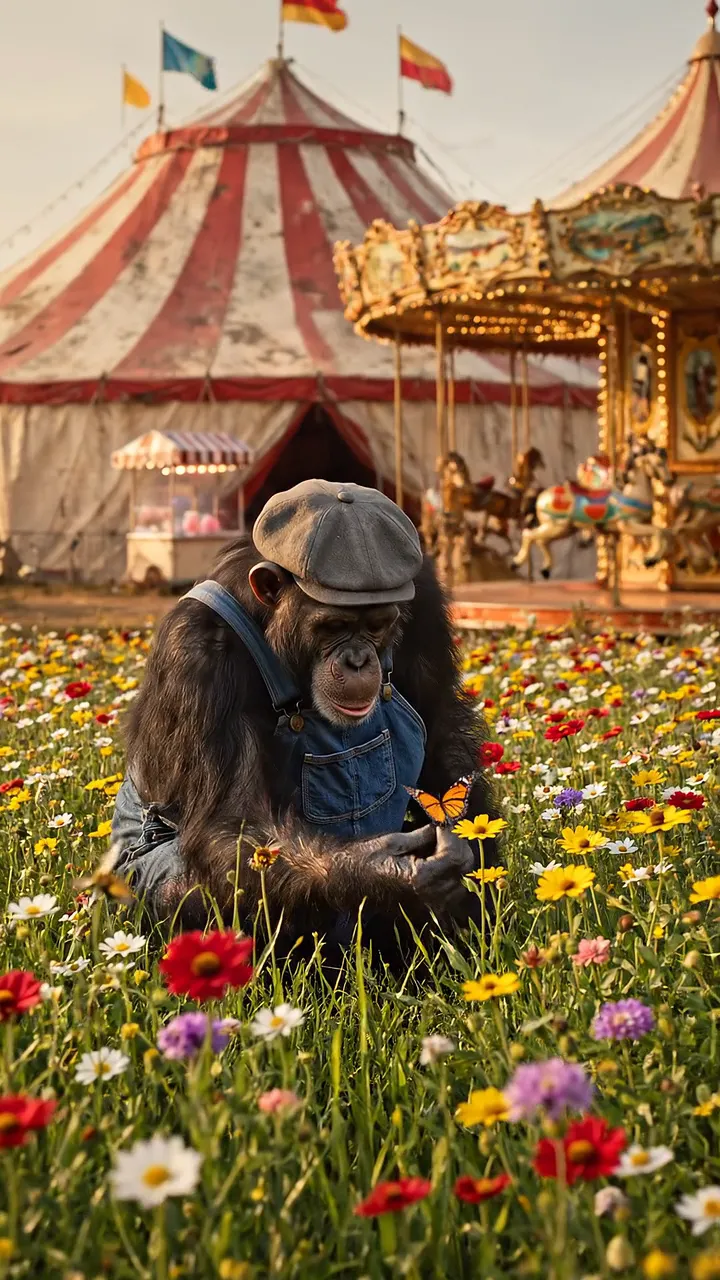
Vertical 9:16 from the First Frame Vertical output is framed for a phone from the first frame, so a mascot or character cutaway is ready for Reels, TikTok and Shorts promos without cropping.
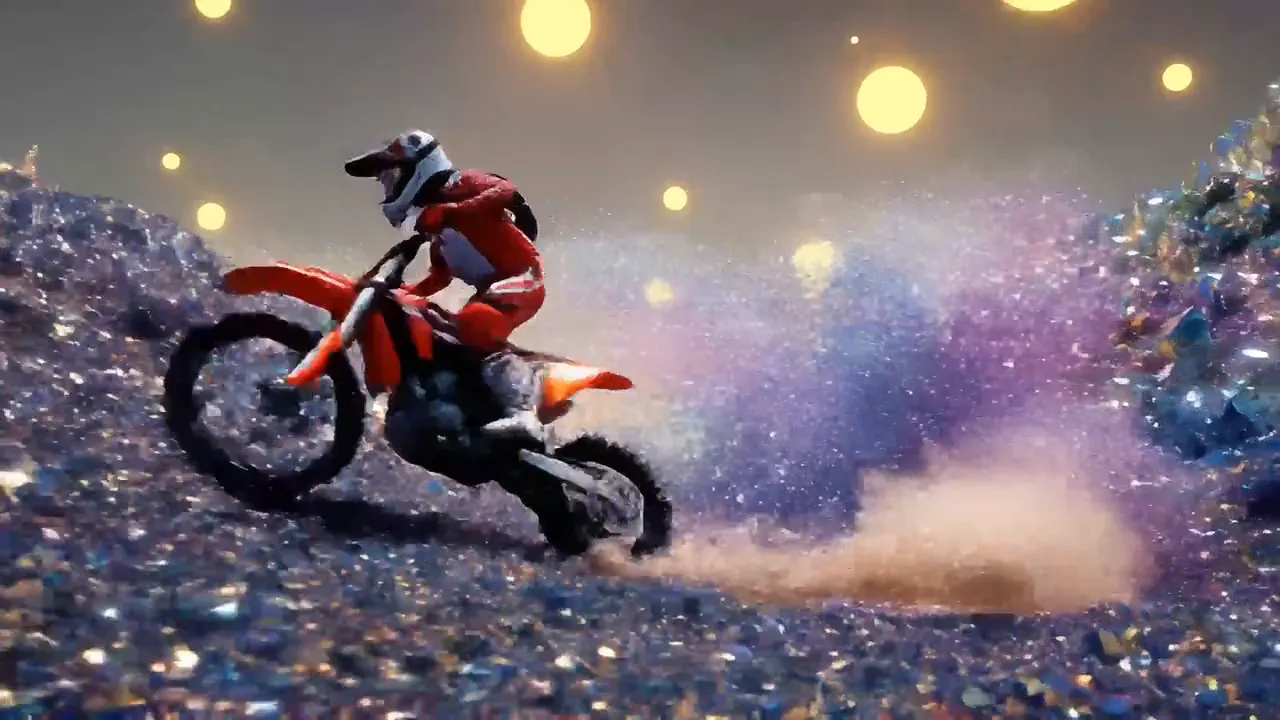
Real Motion in Surreal Worlds Dust, spray and suspension respond to speed and weight on a hill made of crystals, the kind of surreal action that carries an instrumental break.
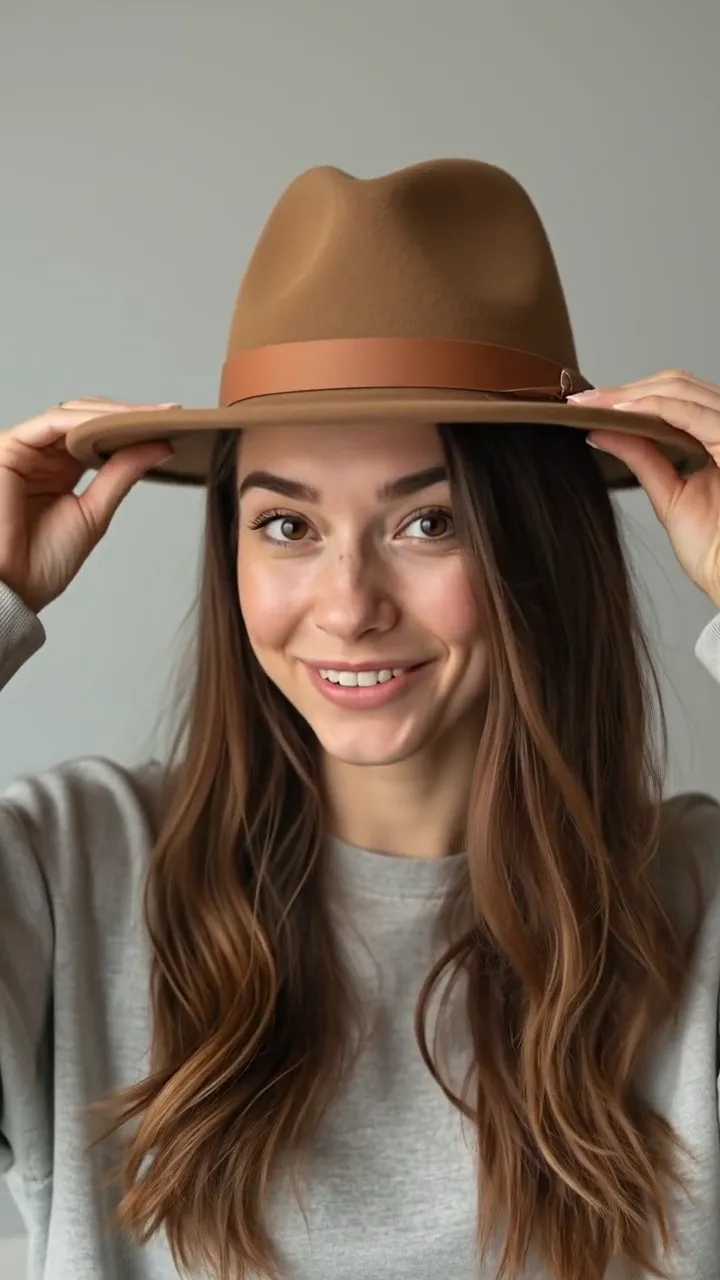
Start and End Frames in Portrait Give Veo 3.1 an opening frame and a closing frame, and it fills the gesture between them, here a hat going on in one move, a clean reveal for a single-drop teaser.
Shape voices, sound, framing and transitions for rap and music video shots in the Veo 3.1 AI video generator. Start from text, a photo, two frames or as many as three reference images.
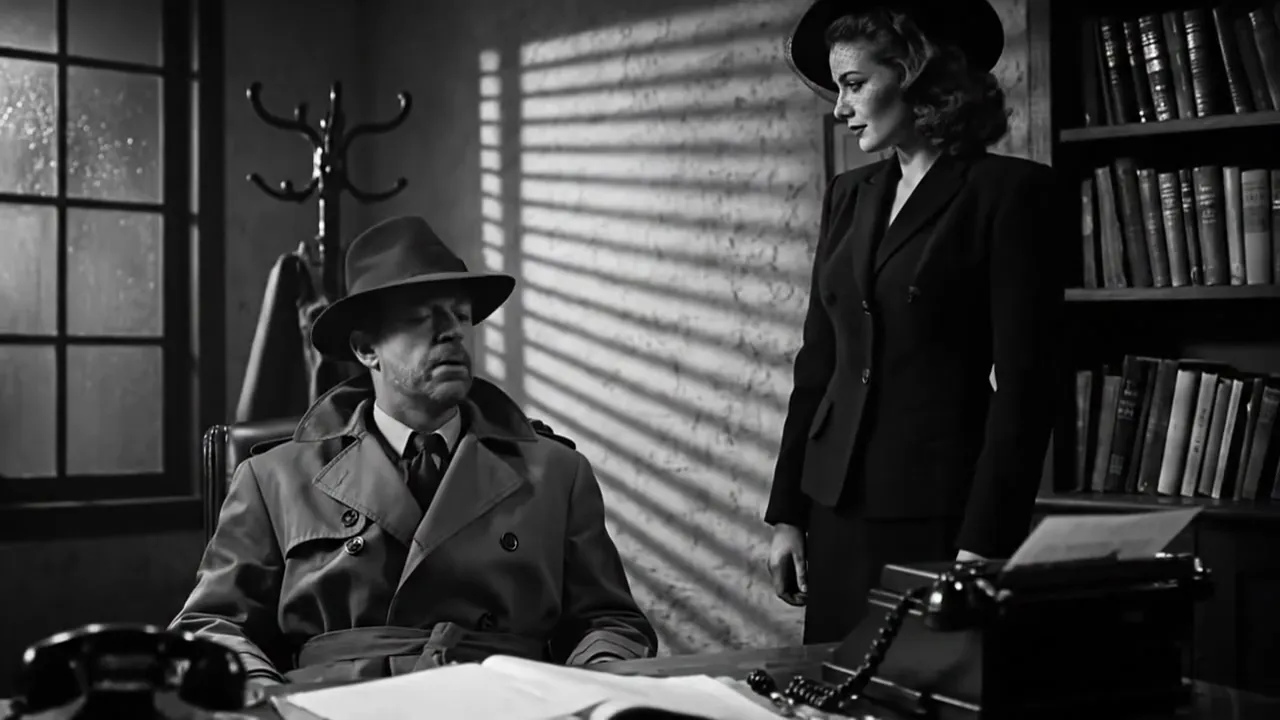
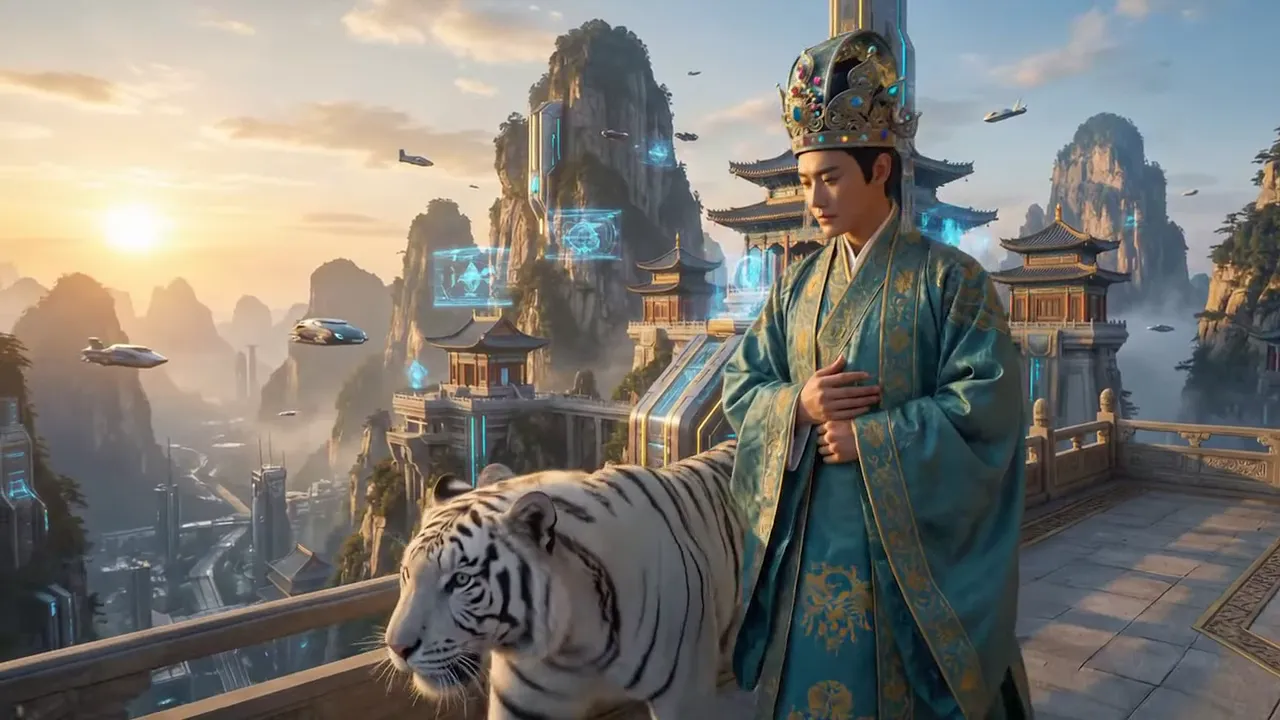
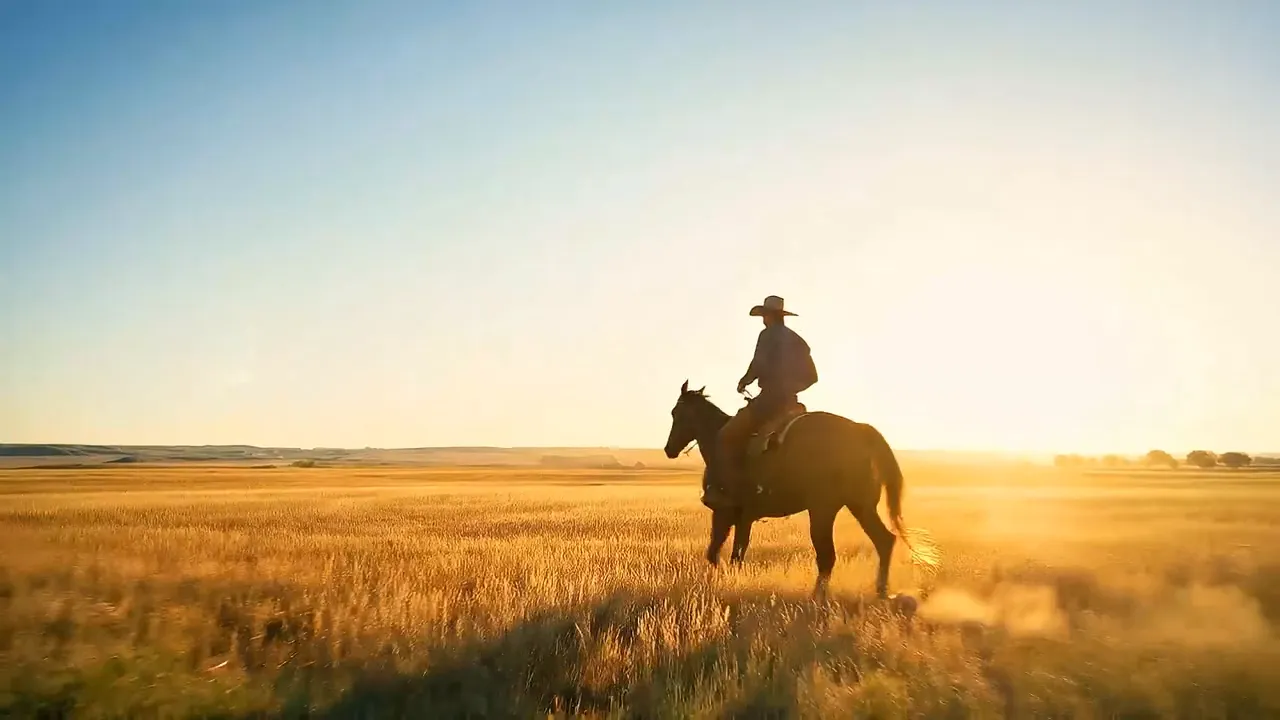
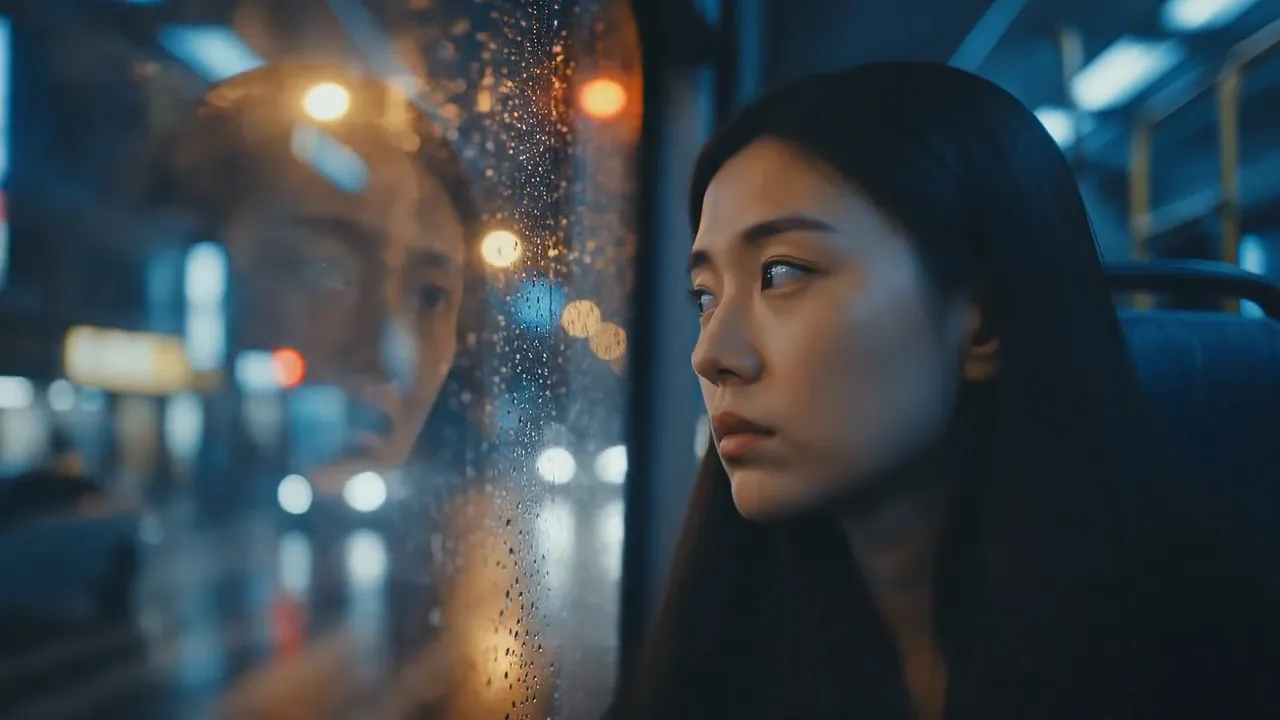
Use the Veo 3.1 AI video generator for rap clips, music video scenes and release promos. Each shot arrives with its own sound, so it goes straight into an edit or sits muted under your track.
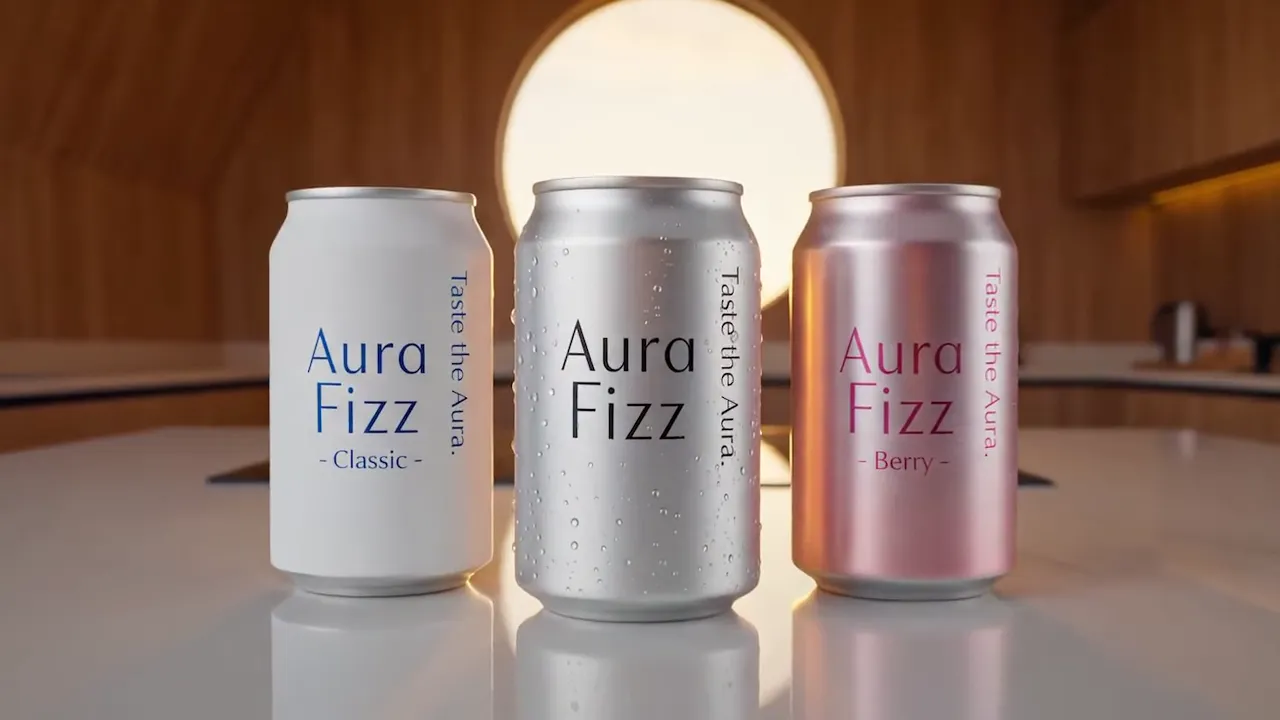
Add your cover art as a reference and describe the camera path, such as a push from a record-store window to the vinyl on the shelf. The artwork stays readable, ready for release-day posts and pre-save ads.
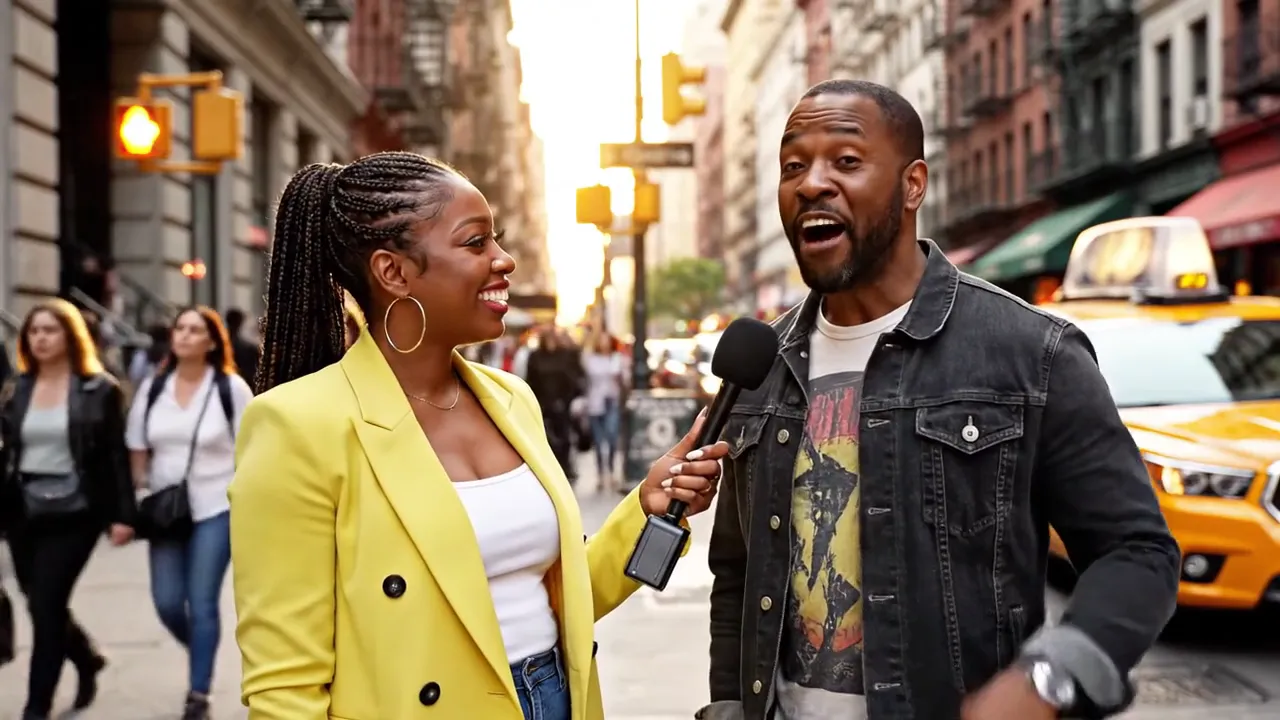
Describe the rapper, the block and the line they say to camera, and you get a clip with natural speech and matching lip movement. Switch to 9:16 for TikTok, Reels and Shorts without booking a crew.
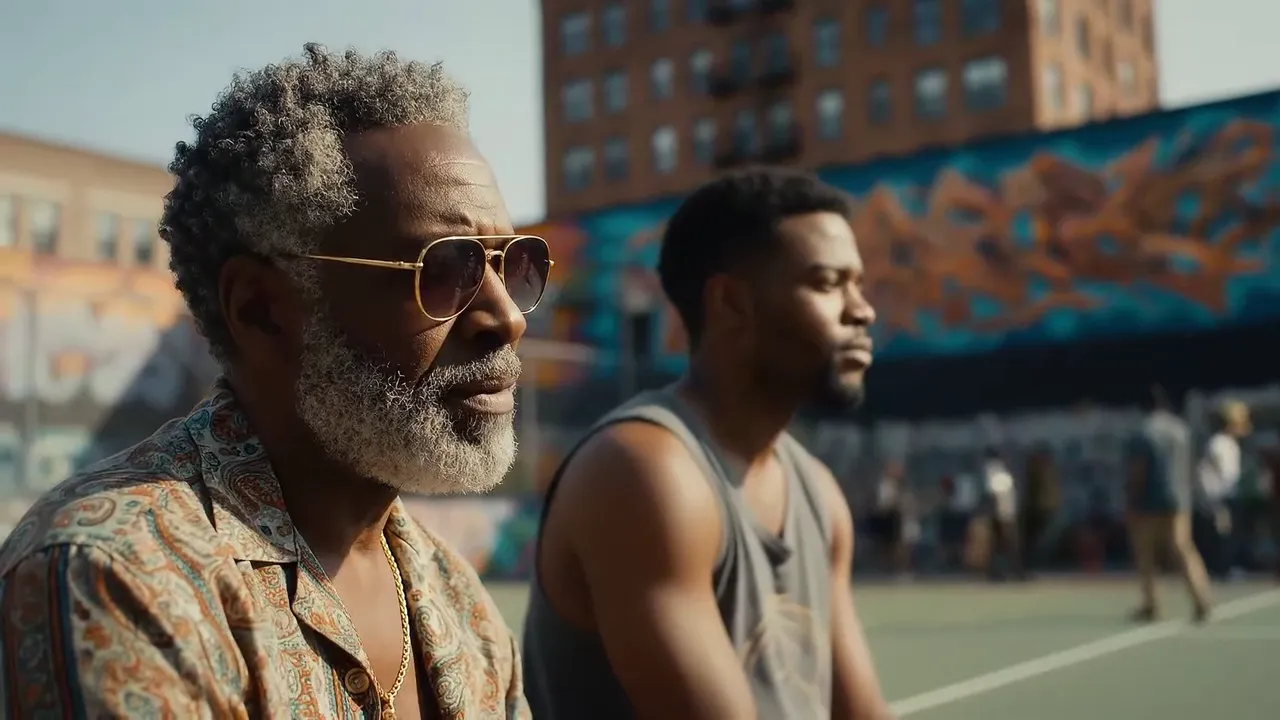
Write the setting, the mood and one line of dialogue, and Veo 3.1 stages the scene with performance, music and street ambience. It works for the story cutaways between performance shots and for treatments you pitch to a label.
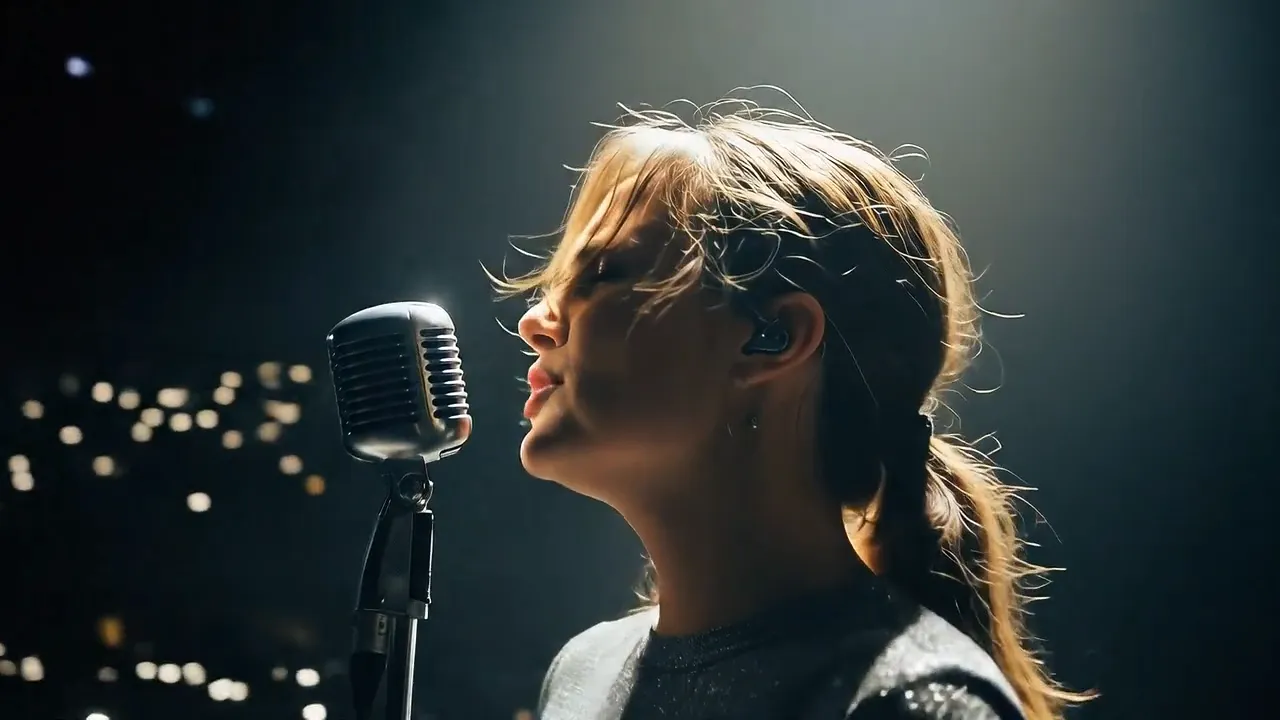
Set a close-up of the performer and a crowd shot as the first and last frames, then write the hook in quotes. The camera arcs from the stage to the crowd while she delivers the line.
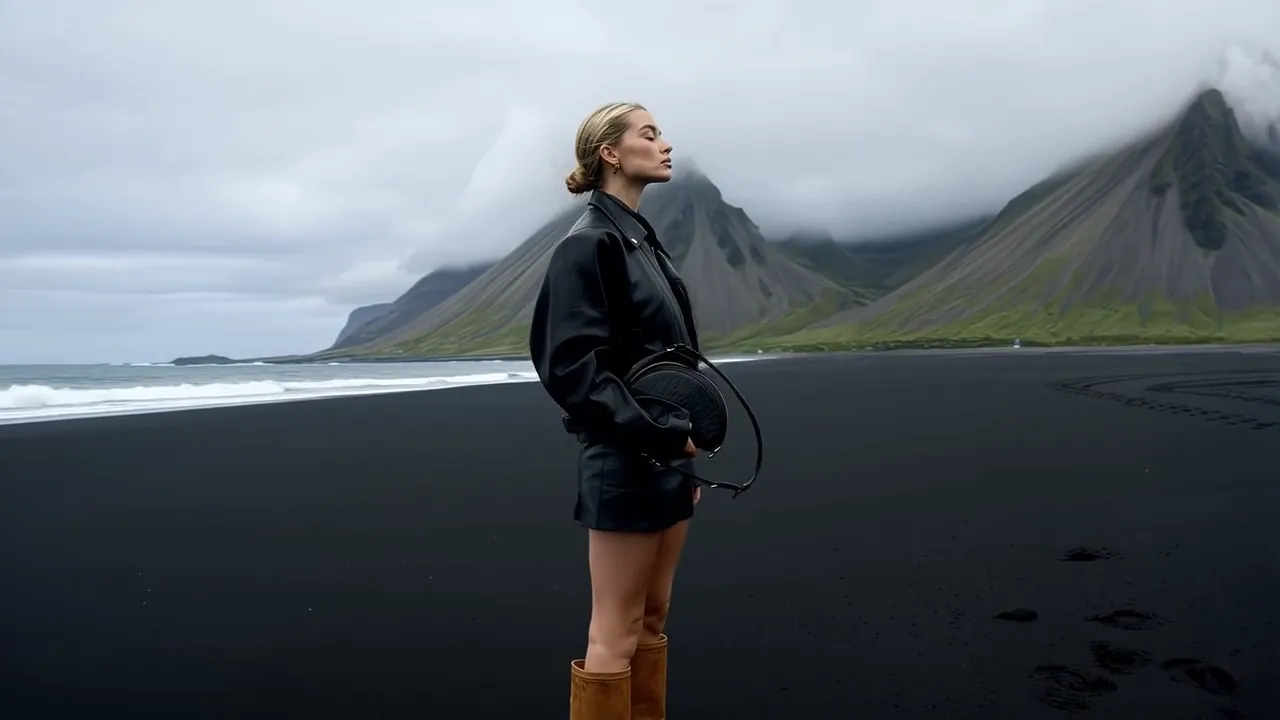
Put an artist and an outfit on a black-sand beach or any location you describe. Wind, fabric and overcast light behave the way they do on an editorial shoot, ready for merch drops and tour teasers.
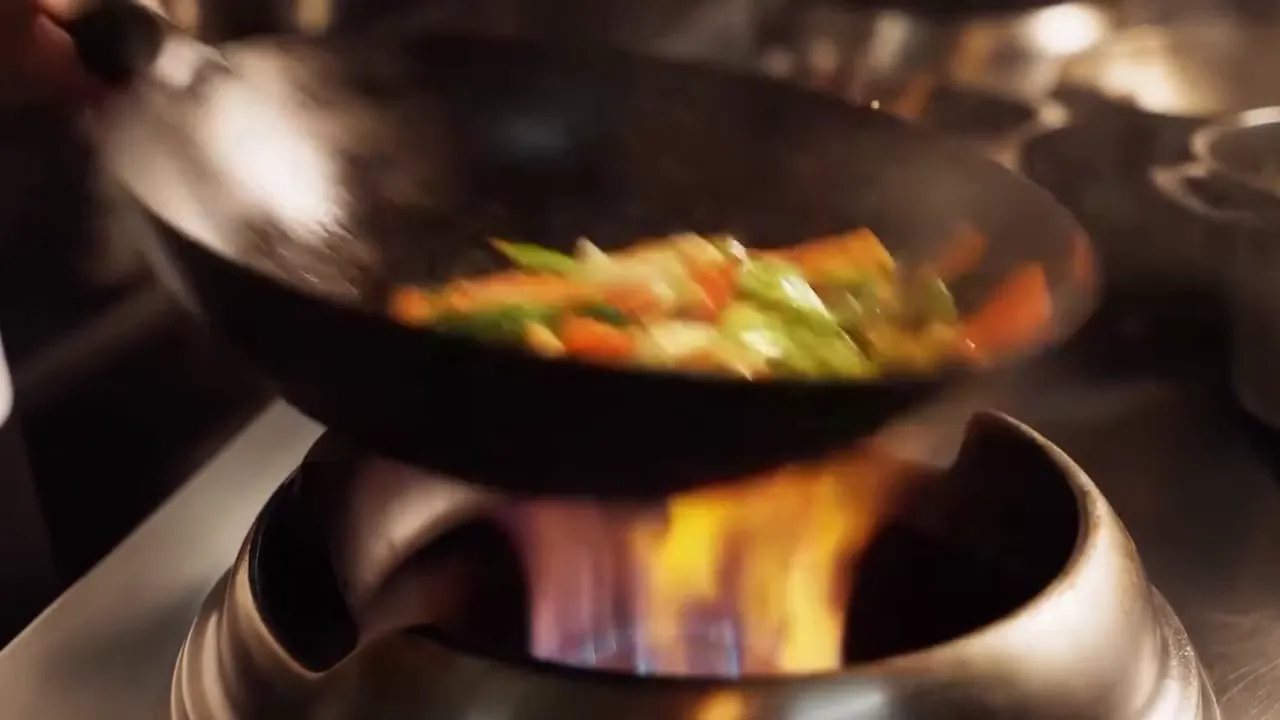
Ask for short actions with a clear hit, such as a lighter flick, a speaker cone jumping or sneakers slapping a court, each with its own sound cue. Cut them on the snare and the B-roll moves with the track.
The Veo 3.1 AI video generator follows film vocabulary, quoted lines and timed instructions, which is how you direct a performance shot beat by beat.
Wrap every spoken line in quotes and attach it to a character, for example: A rapper in a hoodie leans into the lens and says, "This one is for the block." Keep lines short enough for the clip length. Google has fully tested English.
Give each sound its own cue, such as SFX: a vinyl scratch, or Ambient: a crowd chanting outside the venue. Veo 3.1 lines each one up with the action on screen.
Write the prompt in five parts: cinematography, subject, action, context, and style and ambiance. Low-angle medium shot, a rapper in a puffer jacket, pacing toward the lens, an underground parking garage at night, grainy 16mm film.
Break an 8-second prompt into segments like [00:00-00:02] and [00:02-00:04], each with its own shot and sound, such as a wide of the crew and then a close-up on the lead. Veo 3.1 plays them in order inside one clip.
Tell Veo 3.1 what each image is, such as the artist, the hype man and the studio. Generate the next shot from the same three, and faces, outfits and rooms stay consistent through the video.
Pick 4, 6 or 8 seconds, 720p, 1080p or 4K, and 16:9, 9:16 or Auto. Switch sound off when the shot will sit under your own beat.
Shot type, lighting, timed action and quoted speech can all go into one long prompt, and the Veo 3.1 AI video generator keeps to each of them.
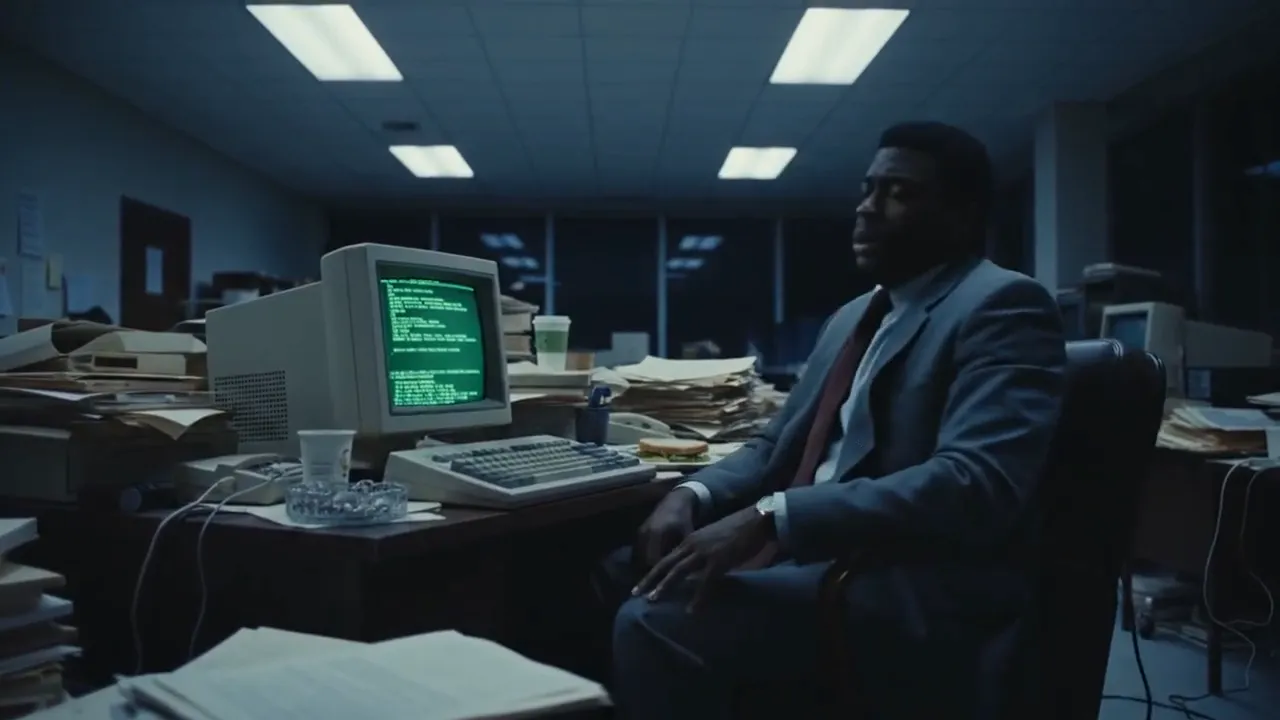
1980s office after midnight
Medium shot of a worn-out office worker rubbing his temples next to a bulky 1980s computer in a cluttered office late at night. Harsh overhead fluorescent light and the green glow of a monochrome monitor. Retro look on grainy 1980s color film.
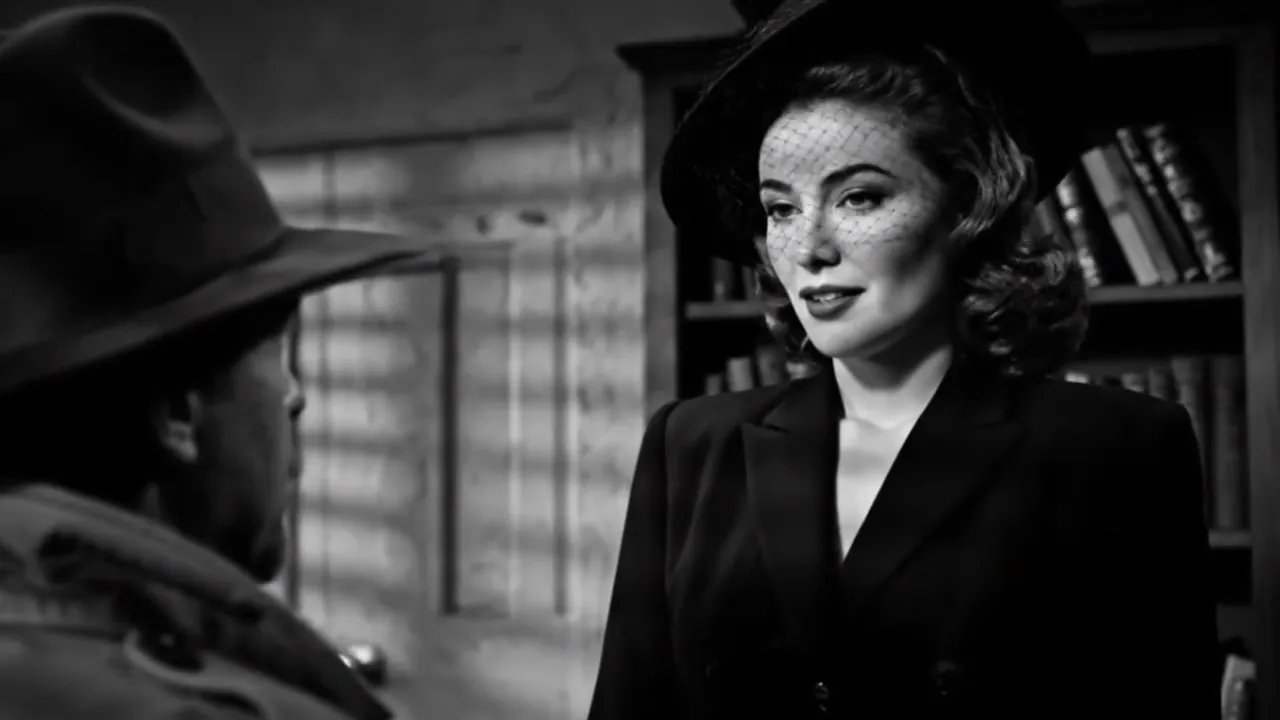
A film noir answer
Using the reference images of the detective, the woman and the office, a shot centered on the woman. A faint, mysterious smile appears as she answers, "You were highly recommended." Black-and-white film noir.
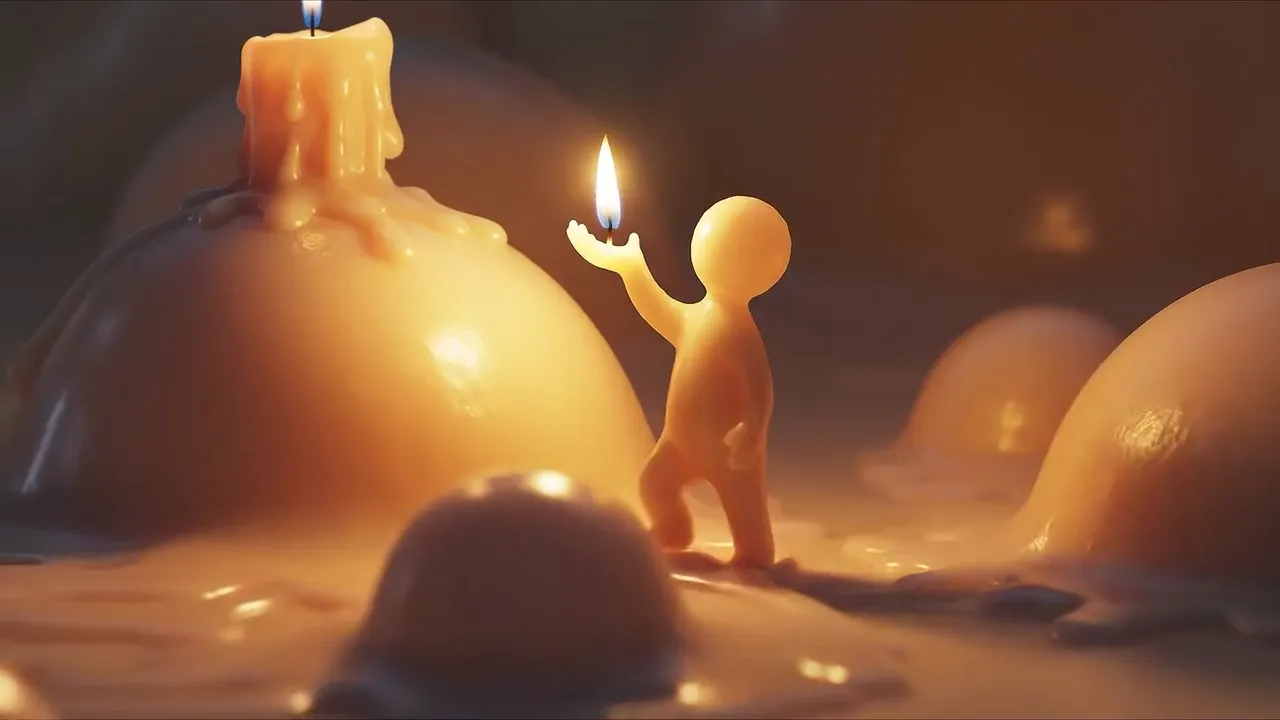
Wax figure, beat by beat
A small pale-yellow wax figure carries a flame across a landscape of molten wax, a dripping candle on its left. 0-1s: eye-level tracking shot as it begins to walk, its feet rippling the wax. 1-7s: slow, careful steps, one arm raised to shield the flame. 7-8s: the camera pulls back to reveal the wider wax world.
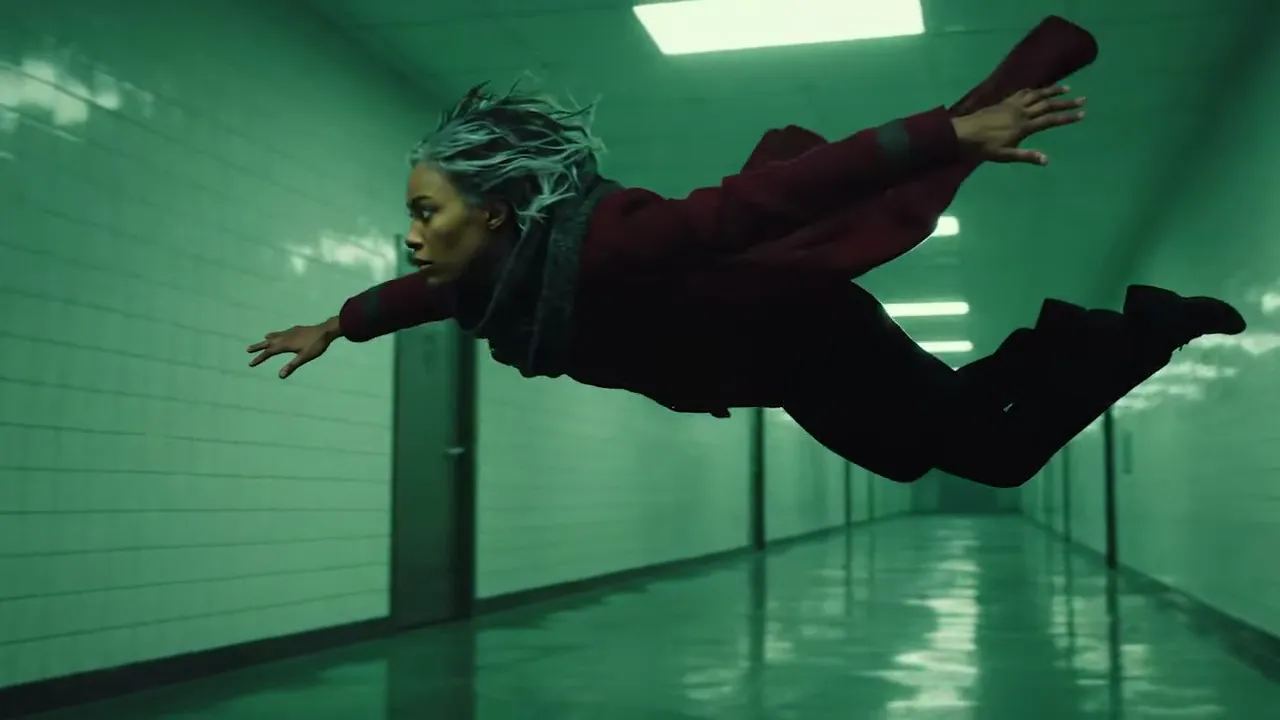
Dolly around a mid-air leap
The camera dollies around a woman frozen mid-leap in a long, sterile, monochrome green corridor. Her dark trench coat and trousers billow, arms spread wide, her profile focused. A tense, cinematic moment.
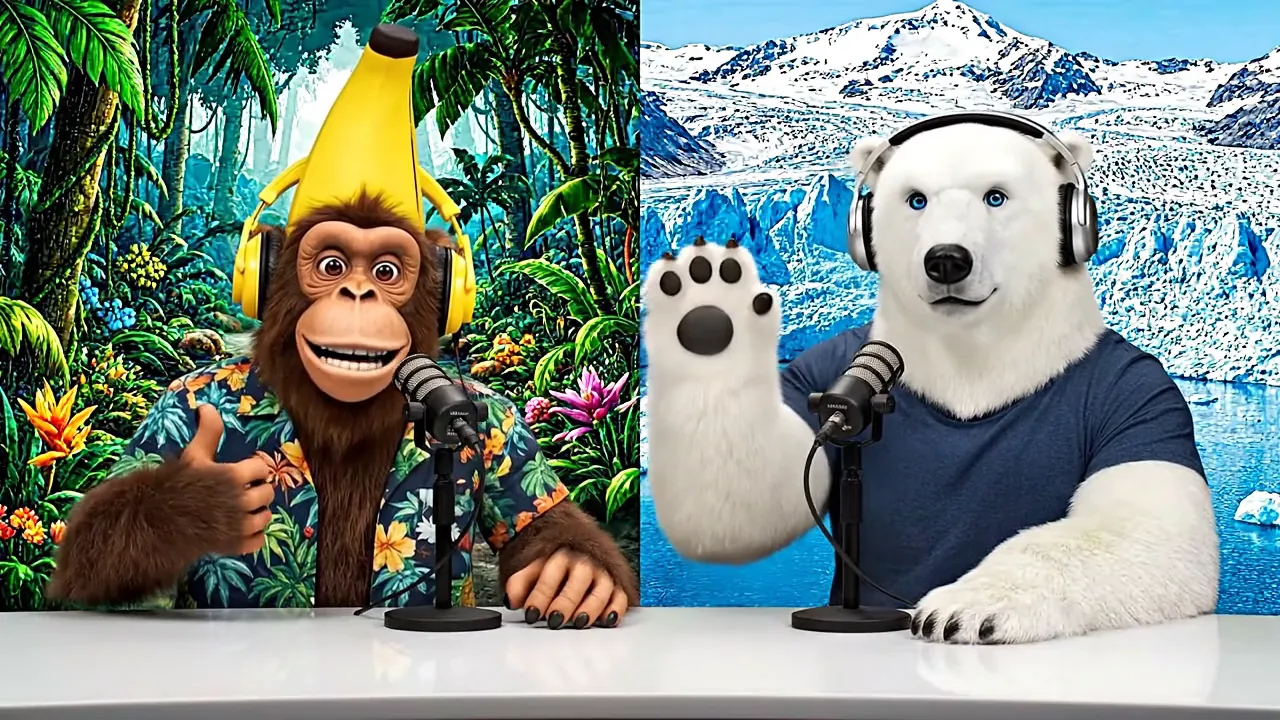
Two animal hosts on the mic
A monkey and a polar bear host a relaxed podcast, a tropical jungle behind one and an arctic glacier behind the other. Monkey: "Welcome back to Bananas and Ice! I am Banana." Polar bear: "And I'm Ice!"
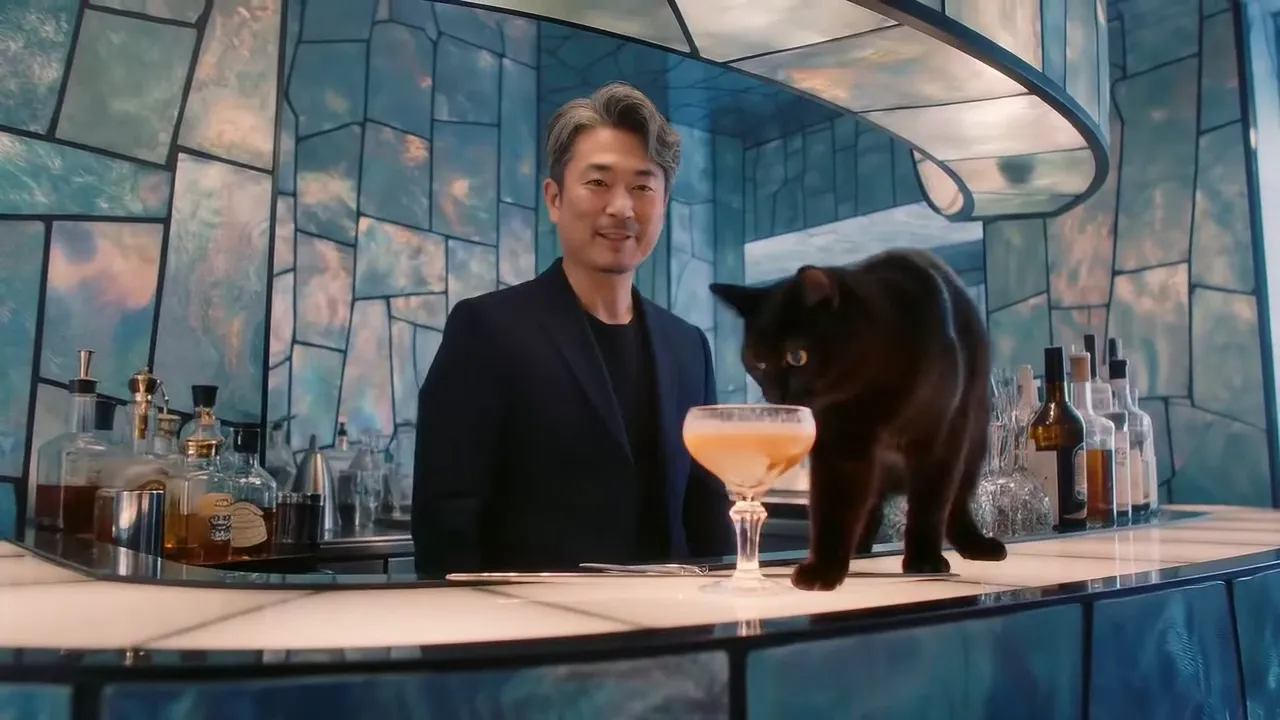
Tracking into a tiled bar
A slow track along iridescent tiled walls above still water, then a push-in and a turn reveal a curved bar and a finished cocktail. Soft jazz and clinking ice. "Welcome," a smooth voice says. "Care for a taste?" A black cat jumps up onto the bar.
Three steps from an idea to a finished Veo 3.1 shot
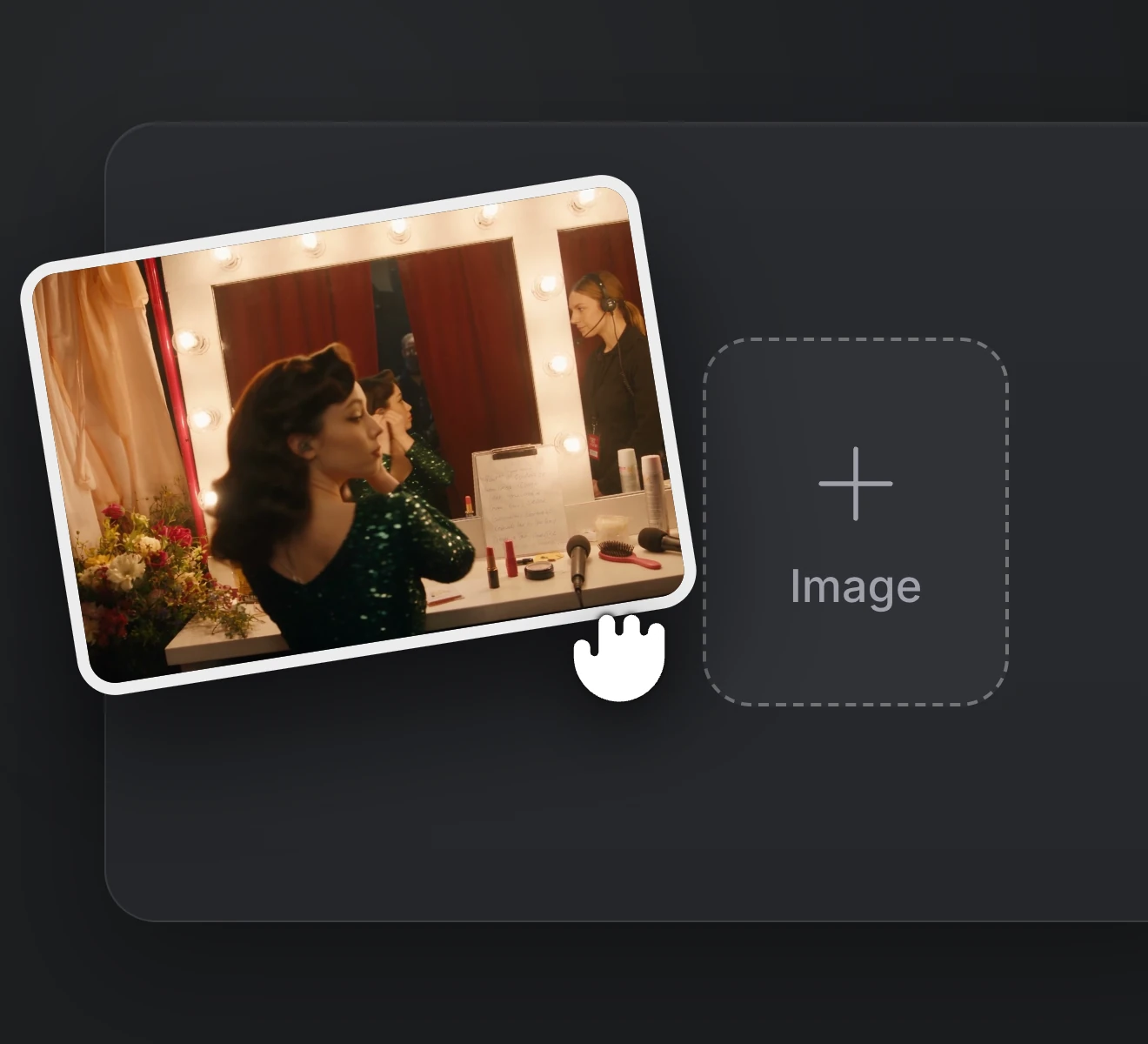
Step 01
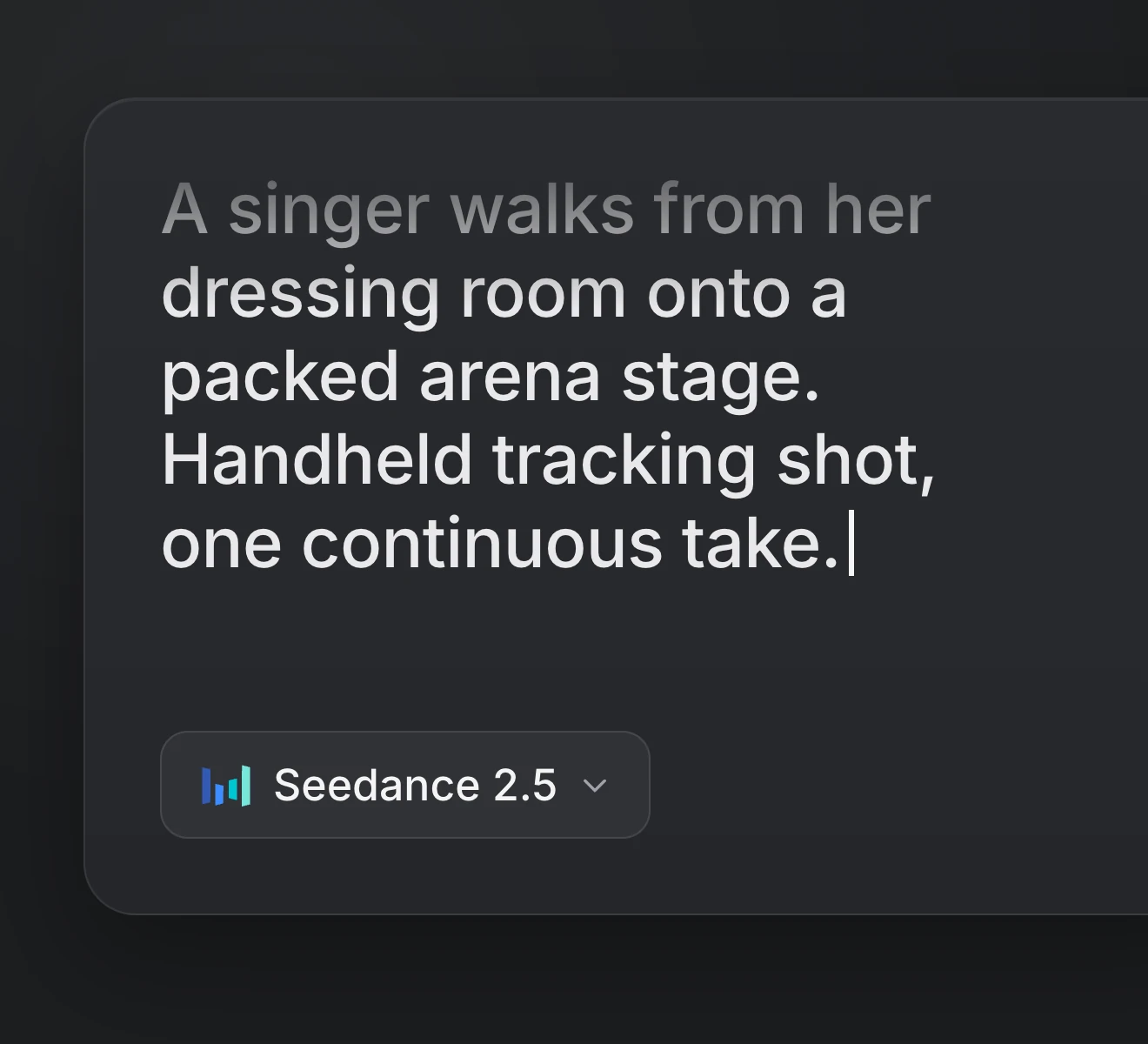
Upload a photo to animate, a pair of frames to connect or as many as three reference images.
Step 02
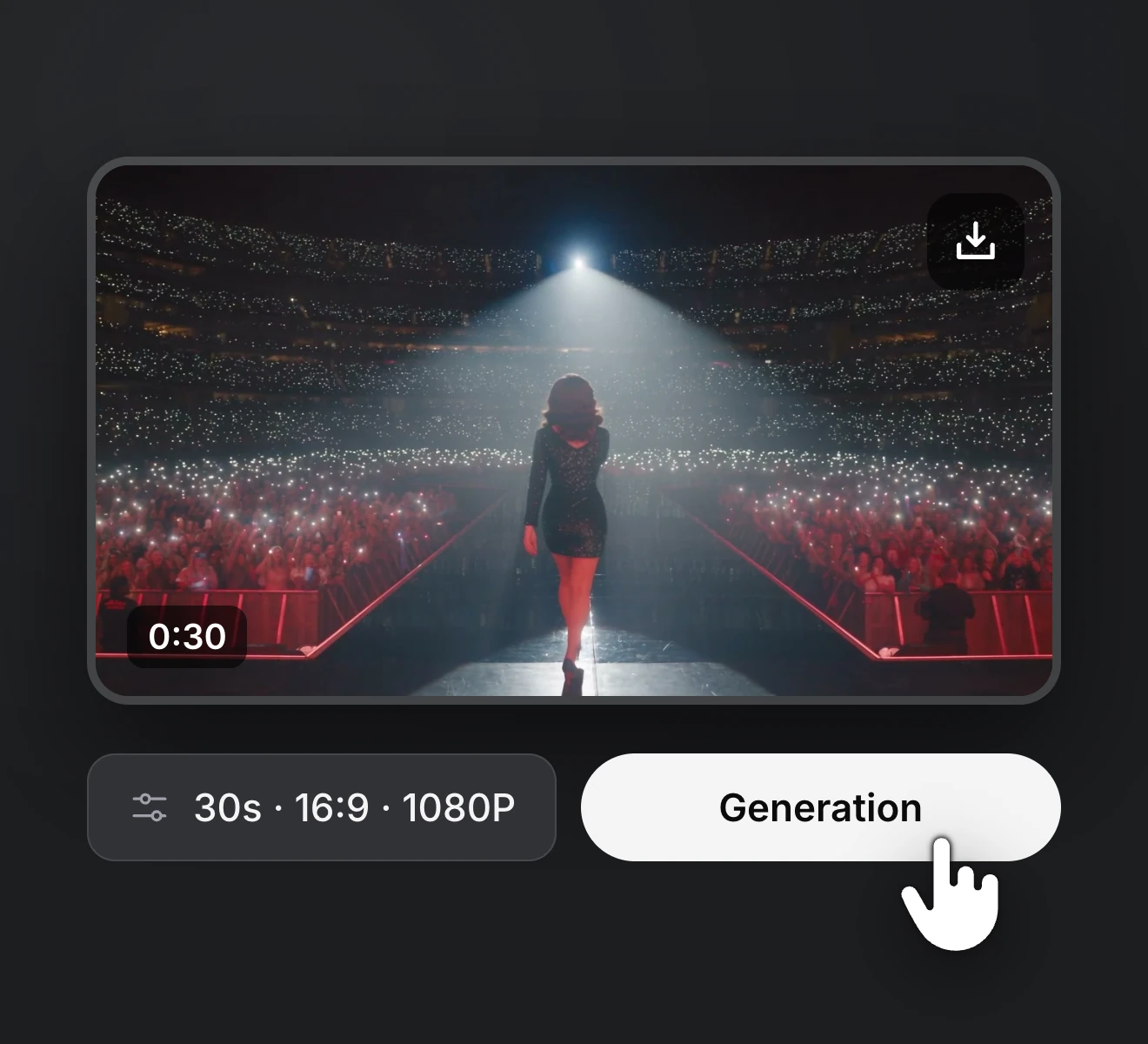
Describe the shot, the movement and the sound. Quote any line you want spoken.
Step 03
Choose 4, 6 or 8 seconds, a resolution and an aspect ratio, then generate and download the take you like.
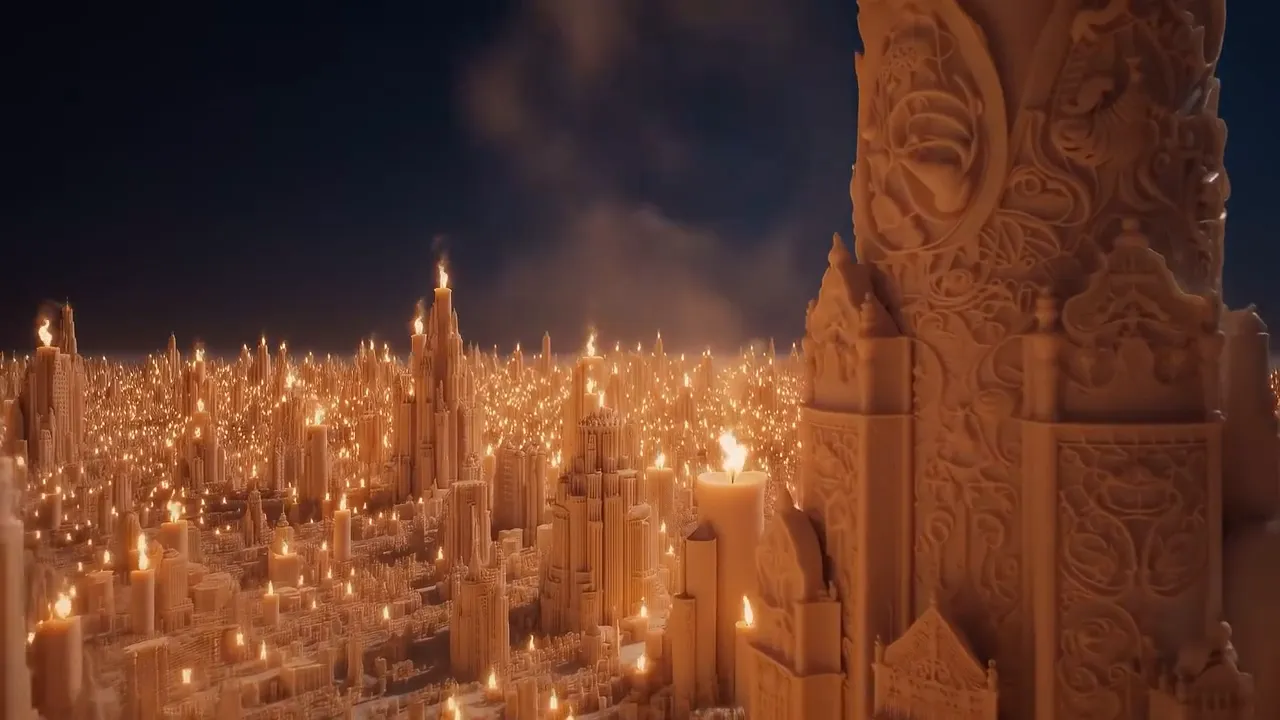
Bring a line of text, an artist photo or two frames, and Veo 3.1 returns a shot with its own voices and sound. Run as many takes as the verse needs and download the keeper in 720p, 1080p or 4K.
Upgrade or cancel anytime. Choose a plan for clean output, fast generation, full model access and priority support.
Monthly
Annual
Short answers on using Veo 3.1 for rap and music video work, plus the plans, credits and billing behind it on RapVid.