Upload an image
The photo or graphic you want to change.
Upload an image and type the change: swap an outfit, remove an object, fix the lighting or add text. Only that part changes and the rest of the image stays put.
Three steps from your files to the finished result.
The photo or graphic you want to change.
Write one clear instruction, like 'make the jacket red leather' or 'remove the car in the background'.
Choose the resolution and download the edited image.
Workflows tailored for your creativity. Each one opens ready to use.
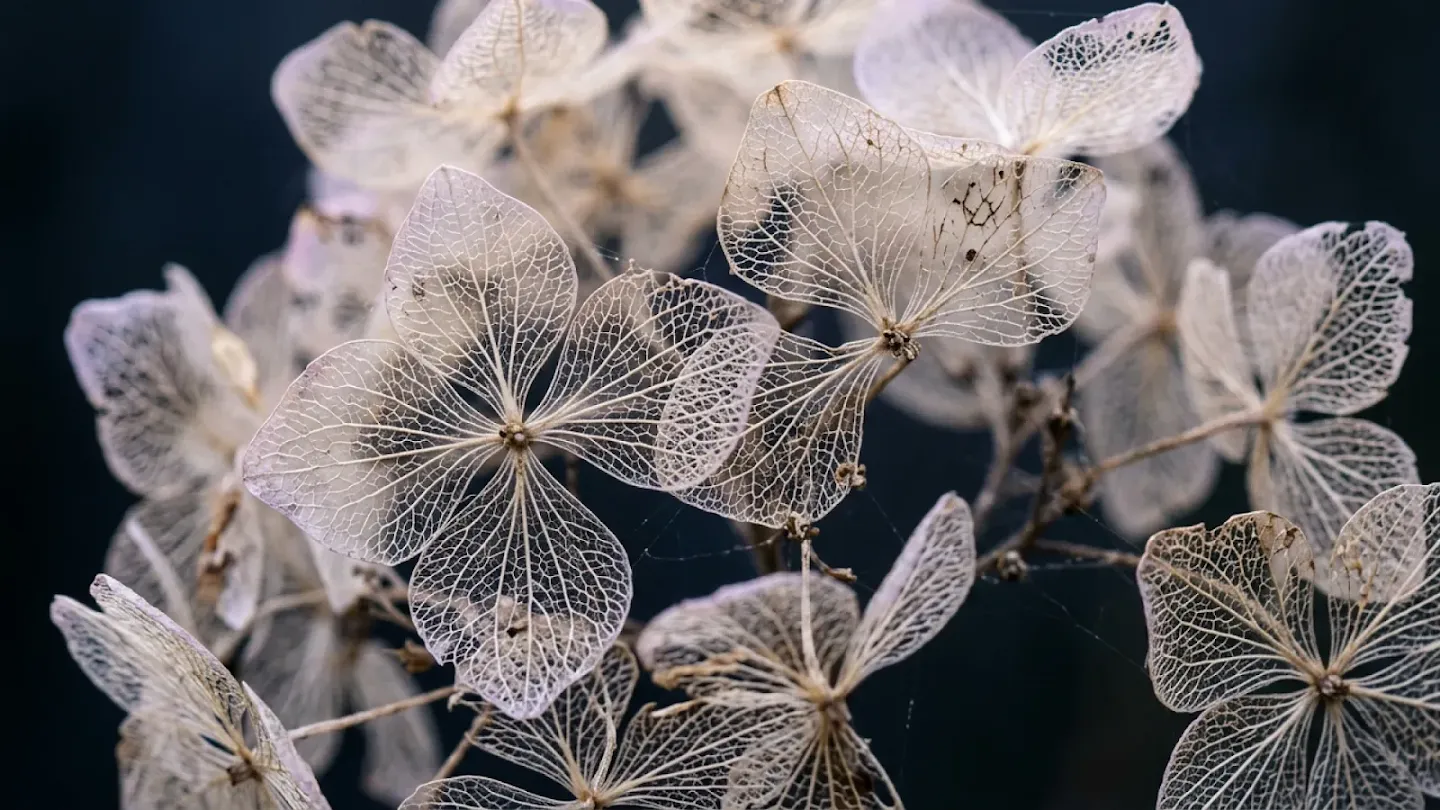
Restyle any image while keeping its subject and composition.
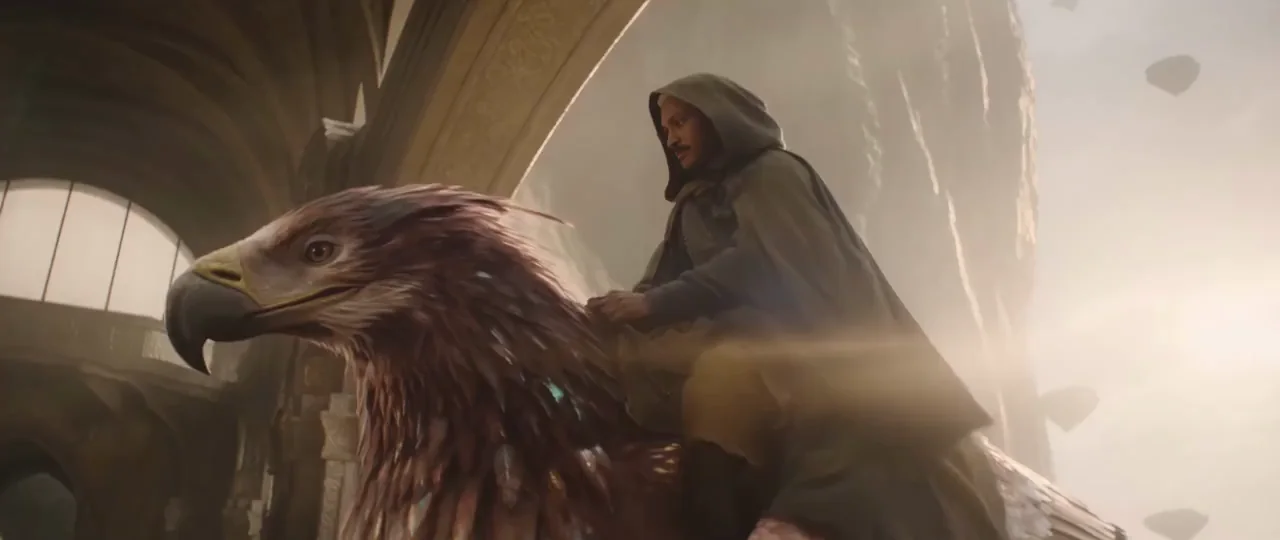
Turn a track into a multi-shot video cut on the beat.
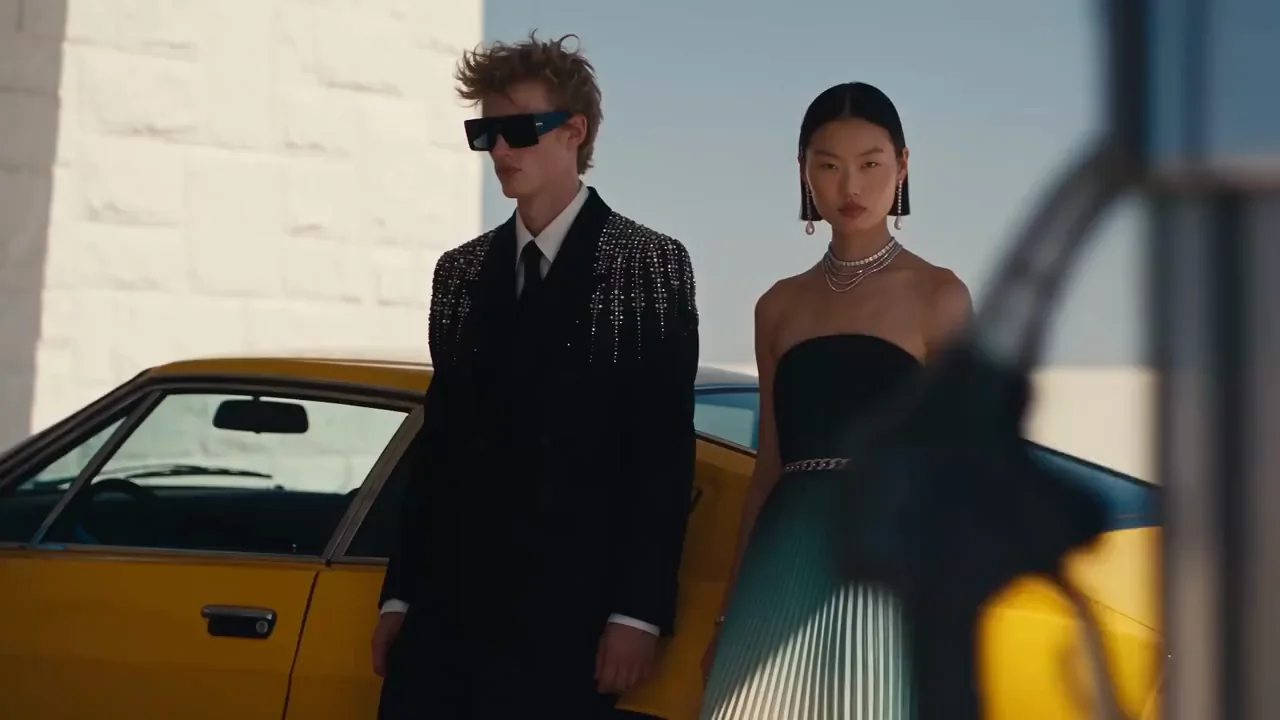
Bring a still image to life with natural motion.
Change exactly what you ask for and leave the rest alone.

Make a portrait speak your words with lip sync.
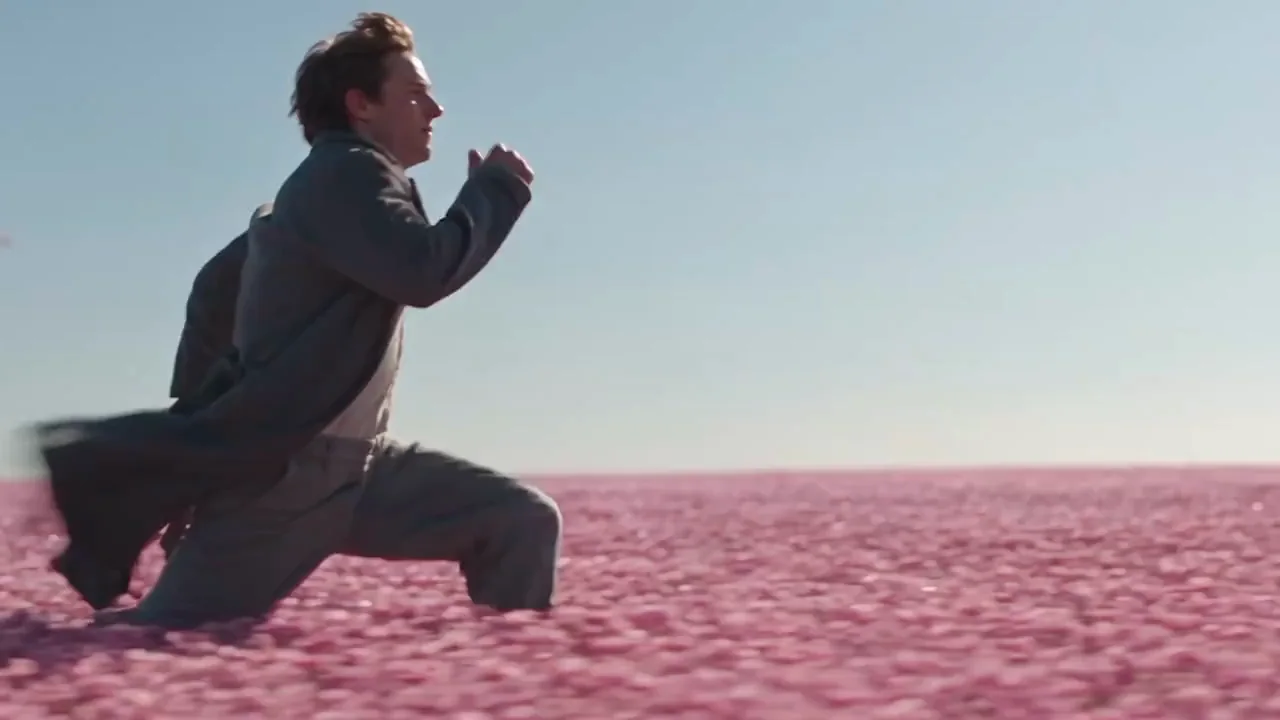
Connect a start and an end frame with one smooth shot.
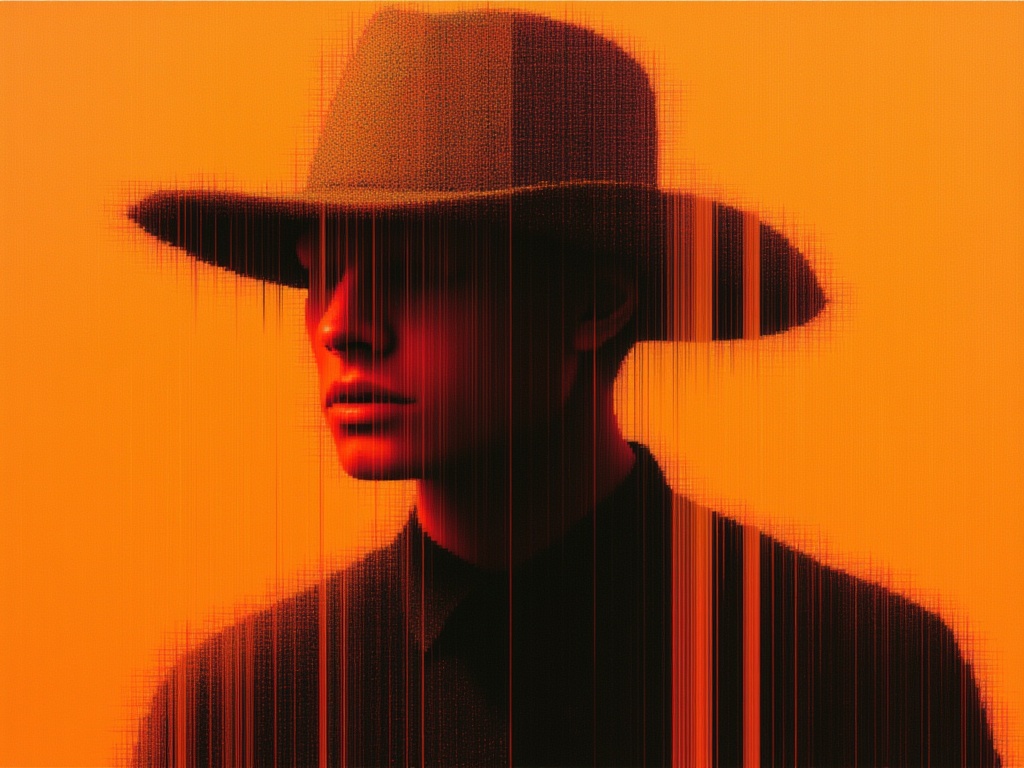
Put your subject in a new scene without changing them.
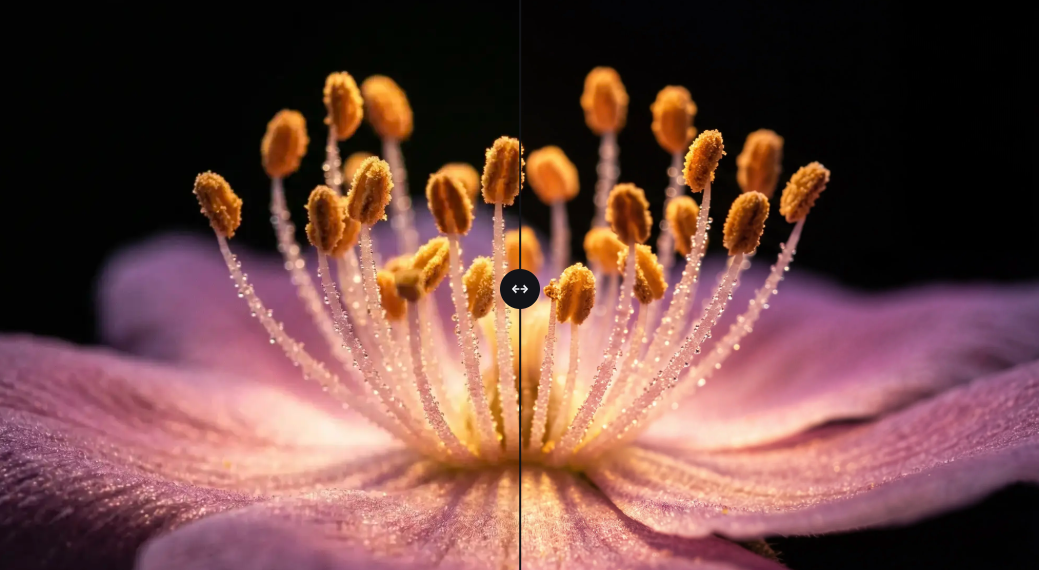
Merge people, products and places into one image.
What Edit Image does and how to get the best results.
Upload an image and type the change: swap an outfit, remove an object, fix the lighting or add text. Only that part changes and the rest of the image stays put.